<?xml version="1.0" encoding="utf-8"?><feed xmlns="http://www.w3.org/2005/Atom" ><generator uri="https://jekyllrb.com/" version="3.10.0">Jekyll</generator><link href="https://lnav.org/feed.xml" rel="self" type="application/atom+xml" /><link href="https://lnav.org/" rel="alternate" type="text/html" /><updated>2026-03-07T15:13:35+00:00</updated><id>https://lnav.org/feed.xml</id><title type="html">The Logfile Navigator</title><subtitle>The Logfile Navigator, lnav for short, is an advanced log file viewer for the small-scale.</subtitle><entry><title type="html">Visual Changelog for v0.13.0</title><link href="https://lnav.org/2025/03/24/changes-0-13-0.html" rel="alternate" type="text/html" title="Visual Changelog for v0.13.0" /><published>2025-03-24T00:00:00+00:00</published><updated>2025-03-24T00:00:00+00:00</updated><id>https://lnav.org/2025/03/24/changes-0-13-0</id><content type="html" xml:base="https://lnav.org/2025/03/24/changes-0-13-0.html"><![CDATA[<p>The v0.13.0 release of the Logfile Navigator has some major changes that
I’ll go over here.  I’ve also recorded a video
covering some of the changes if you want to
see some of the features in action:</p>

<iframe width="560" height="315" src="https://www.youtube.com/embed/6peBzqjgI2M?si=QiQZzfKyjemdUPsm" title="YouTube video player" frameborder="0" allow="accelerometer; autoplay; clipboard-write; encrypted-media; gyroscope; picture-in-picture; web-share" referrerpolicy="strict-origin-when-cross-origin" allowfullscreen=""></iframe>

<h2 id="new-prompt">New Prompt</h2>

<p>From the beginning, lnav used the
<a href="https://tiswww.case.edu/php/chet/readline/rltop.html">readline library</a>
for handling the command prompt at the bottom of
the screen.  It worked.  But that solution had
many limitations: simplistic tab-completion;
complicated integration, which used a separate
process; glitchy syntax highlighting; lack of
multi-line support.</p>

<p>To address these limitations, I’ve written a
custom text input widget.  The new widget should
maintain almost all of the existing functionality
of readline (except for the readline configuration
file) while also improving the overall experience.</p>

<p>The following sub-sections highlight some of the
new functionality.</p>

<h3 id="history">History</h3>

<figure>
  <img src="https://lnav.org/assets/images/lnav-textinput-history.png" />
  <figcaption>
      Screenshot of the history showing one failed
      query and some successful queries.
  </figcaption>
</figure>

<p>History search can be activated with <code class="language-plaintext highlighter-rouge">CTRL-R</code>
and is a fuzzy search now.  The history is also
kept in a SQLite DB so that it is saved immediately
and available across sessions.  The status of the
executed command is also saved and shown in the
history so it is easy to see what worked or did not.</p>

<h3 id="search-suggestions">Search Suggestions</h3>

<p>Searching for a phrase is now easier because lnav
will automatically suggest the next word from the
display.  For example, when searching for
“release the kraken”, typing “release” followed
by a space will suggest “the”.  Pressing TAB will
then complete “the” and then pressing SPACE will
suggest “kraken”.</p>

<figure>
  <video autoplay="" muted="" loop="" playsinline="" style="display: block; margin: auto; width: 90%; border-radius: 8px">
    <source src="/assets/images/lnav-search-suggestion.mp4" type="video/mp4" />
  </video>
  <figcaption>
      Suggestions being made when searching for the phrase
      "release the kraken", which is displayed in the main view.
  </figcaption>
</figure>

<h3 id="comment-command">Comment Command</h3>

<p>The <code class="language-plaintext highlighter-rouge">:comment</code> command, if you aren’t already
familiar, allows you to attach a textual comment
to a log message.  The comment will show up below
the log message and can be styled using Markdown
syntax.</p>

<p>Writing a comment in a single line as afforded
by readline was pretty cumbersome.  If you wanted
to add a new line, you had to insert a <code class="language-plaintext highlighter-rouge">\n</code>.</p>

<p>Now, with the new implementation, when you enter
<code class="language-plaintext highlighter-rouge">:comment </code>, the prompt will immediately switch
to multi-line mode.  Markdown syntax is now
highlighted and the rendered version will be
shown in the preview panel.  To make comments
even more useful, you can add links to messages
using permalinks (see below).  Clicking the link
in the comment will jump the view to the targeted
message.</p>

<figure>
  <img src="https://lnav.org/assets/images/lnav-comment-example.png" />
  <figcaption>
      Screenshot of comment being entered in Markdown
      with a preview of the rendered version above it.
  </figcaption>
</figure>

<p>Code blocks with the language set to <code class="language-plaintext highlighter-rouge">lnav</code> will
display a “play” button next to commands that
you can click on to execute the command.  This
can be useful for saving commands/queries that were
useful when you were debugging something.</p>

<figure>
  <video autoplay="" muted="" loop="" playsinline="" style="display: block; margin: auto; width: 90%; border-radius: 8px">
    <source src="/assets/images/lnav-md-play-button.mp4" type="video/mp4" />
  </video>
  <figcaption>
      Demo of commands in a comment code block
      being executed.  Comments can be an easy
      way to collect useful commands/queries
      for this log.
  </figcaption>
</figure>

<h3 id="db-statements">DB Statements</h3>

<p>The other functionality that benefits greatly from
a multi-line prompt is entering DB statements.
The SQL prompt starts in single-line mode, but can
easily be switched to multi-line by pressing
<code class="language-plaintext highlighter-rouge">CTRL-L</code>.  The switch to multi-line will also
reformat the SQL/PRQL statement to split it over
multiple lines.</p>

<figure>
  <video autoplay="" muted="" loop="" playsinline="" style="display: block; margin: auto; width: 90%; border-radius: 8px">
    <source src="/assets/images/lnav-sql-multiline.mp4" type="video/mp4" />
  </video>
  <figcaption>
      Demo of a long single-line query being
      reformatted to multi-line and the
      prompt resizing automatically.
  </figcaption>
</figure>

<h3 id="cut-to-the-system-clipboard">Cut to the System Clipboard</h3>

<p>Cutting text in the prompt using the keyboard
shortcuts now copies the text to the system
clipboard.</p>

<h3 id="saving-the-prompt-contents">Saving the Prompt Contents</h3>

<p>If you want to export the prompt contents to edit
in another editor or for some other reason, you
can press <code class="language-plaintext highlighter-rouge">CTRL-O</code> to save to a file named
<code class="language-plaintext highlighter-rouge">saved-prompt.lnav</code>.  The file is saved in the
lnav <code class="language-plaintext highlighter-rouge">formats/installed</code> directory so that it
can be executed using <code class="language-plaintext highlighter-rouge">|saved-prompt</code>.  Also,
if VS Code is available, it will be called to
edit the file since there is an lnav extension
available.  A different editor can be used by
changing the <code class="language-plaintext highlighter-rouge">/tuning/external-editor</code>
configuration.</p>

<h3 id="mouse-support">Mouse Support</h3>

<p>Finally, the prompt has support for mouse input.
Left-click will position the cursor.  Click-drag
to select a range of text.  A right-click will
copy the selection to the system clipboard.</p>

<figure>
  <video autoplay="" muted="" loop="" playsinline="" style="display: block; margin: auto; width: 90%; border-radius: 8px">
    <source src="/assets/images/lnav-prompt-mouse.mp4" type="video/mp4" />
  </video>
  <figcaption>
      Demo of using the mouse in the prompt to
      select ranges, resize the prompt height,
      and selecting a word with a double-click.
  </figcaption>
</figure>

<h2 id="time-column">Time Column</h2>

<p>The “time column” feature displays an abbreviated
timestamp and log level in a column on the left
when enabled, while also hiding the original
timestamp and level.  The column reduces the size
of log messages and aligns timestamps/log-levels
across log formats to make for easier reading.
Enabling the column is done simply by scrolling to
the right.  Scrolling left will disable the column
and display the full log message as usual.</p>

<p>This feature is gated by the <code class="language-plaintext highlighter-rouge">/ui/views/log/time-column</code>
setting, with the following values:</p>

<ul>
  <li><code class="language-plaintext highlighter-rouge">disabled</code>: scrolling right works as normal and
does not insert the time column.</li>
  <li><code class="language-plaintext highlighter-rouge">enabled</code>: scrolling right enables the time column.</li>
  <li><code class="language-plaintext highlighter-rouge">default</code>: the time column is enabled and the
default on startup.</li>
</ul>

<figure>
  <img src="https://lnav.org/assets/images/lnav-time-column.png" />
  <figcaption>
      Screenshot of messages from a syslog and an
      access log mixed together with the time-column
      feature enabled.  Note that the log formats
      normally have different timestamp formats and
      locations in their log messages.  With the
      feature enabled, the timestamps are hidden are
      now there is a nice aligned column with the time
      and level.
  </figcaption>
</figure>

<h2 id="empty-view-messages">Empty View Messages</h2>

<p>If no files are loaded into the LOG or TEXT views,
a message will be displayed to give you a hint to
use the <code class="language-plaintext highlighter-rouge">:open</code> command or switch the view.</p>

<figure>
  <img src="https://lnav.org/assets/images/lnav-no-files-message.png" />
  <figcaption>
      Message shown when no files are loaded.
  </figcaption>
</figure>

<h2 id="control-characters-in-table-cells">Control Characters in Table Cells</h2>

<p>In the DB view, table cells will now display
non-printable characters as their unicode symbols
and highlighted in yellow.</p>

<p><img src="/assets/images/lnav-db-control-characters.png" alt="Screenshot of DB row with control characters" /></p>

<h2 id="permalinks-for-log-messages">Permalinks for Log Messages</h2>

<p>Log messages now have permalinks that can be used
to reference them from other locations.  The
permalink for a message is shown in the parser
details overlay (activated by pressing <code class="language-plaintext highlighter-rouge">p</code>).
Selecting the “Permalink:” line in the overlay and
then pressing <code class="language-plaintext highlighter-rouge">c</code> will copy the link to your
clipboard. The link is also available in the
<code class="language-plaintext highlighter-rouge">log_line_link</code> column of the log tables.  These
permalinks can be used with the <code class="language-plaintext highlighter-rouge">:goto</code> command
to move to the log message.</p>

<figure>
  <img src="https://lnav.org/assets/images/lnav-msg-permalinks.png" />
  <figcaption>
      The permalink is shown in the parser details
      overlay (opened by pressing <code>p</code>.
      The link can by copied by focusing on the
      line and pressing <code>c</code>.
  </figcaption>
</figure>

<h2 id="measure-collation-function">“Measure” Collation Function</h2>

<p>A <code class="language-plaintext highlighter-rouge">measure_with_units</code> SQLite collation function has been
added that can compare numbers with unit suffixes,
like “10KB” or “1.2ms”.  The <code class="language-plaintext highlighter-rouge">:create-search-table</code>
command will also use this collation function for
capture patterns that are likely to capture a number
with a unit.  Associating the correct collation
function means that sorting will work correctly.
For example, “1KB” will be greater than “5B”.</p>

<figure>
  <img src="https://lnav.org/assets/images/lnav-measure-collation.png" />
  <figcaption>
      The <a href="https://docs.lnav.org/en/v0.12.4/usage.html#search-tables">
      <code>:create-search-table</code></a> command
      creates the table column with the
      <code>measure_with_units</code> collation since
      the <code>size</code> capture only recognizes
      a number followed by a suffix.
  </figcaption>
</figure>]]></content><author><name></name></author><summary type="html"><![CDATA[Detailed overview of major changes in v0.13.0]]></summary></entry><entry><title type="html">Support for the PRQL in the database query prompt</title><link href="https://lnav.org/2024/03/29/prql-support.html" rel="alternate" type="text/html" title="Support for the PRQL in the database query prompt" /><published>2024-03-29T00:00:00+00:00</published><updated>2024-03-29T00:00:00+00:00</updated><id>https://lnav.org/2024/03/29/prql-support</id><content type="html" xml:base="https://lnav.org/2024/03/29/prql-support.html"><![CDATA[<p>The v0.12.1 release of lnav includes support for
<a href="https://prql-lang.org">PRQL</a>.  PRQL is a database query language
that has a pipeline-oriented syntax.  The main advantage of PRQL,
in the context of lnav, is that it is easier to work with
interactively compared to SQL.  For example, lnav can provide
previews of different stages of the pipeline and provide more
accurate tab-completions for the columns in the result set.  I’m
hoping that the ease-of-use will make doing log analysis in lnav
much easier.</p>

<p>You can execute a PRQL query using the existing database prompt
(press <code class="language-plaintext highlighter-rouge">;</code>).  A query is interpreted as PRQL if it starts with
the <a href="https://prql-lang.org/book/reference/data/from.html"><code class="language-plaintext highlighter-rouge">from</code></a>
keyword.  After <code class="language-plaintext highlighter-rouge">from</code>, the database table should be provided.
The table for the focused log message will be suggested by default.
You can accept the suggestion by pressing TAB.  To add a new stage
to the pipeline, enter a pipe symbol (<code class="language-plaintext highlighter-rouge">|</code>), followed by a
<a href="https://prql-lang.org/book/reference/stdlib/transforms/index.html">PRQL transform</a>
and its arguments.  In addition to the standard set of transforms,
lnav provides some convenience transforms in the <code class="language-plaintext highlighter-rouge">stats</code> and <code class="language-plaintext highlighter-rouge">utils</code>
namespaces.  For example, <code class="language-plaintext highlighter-rouge">stats.count_by</code> can be passed one or more
column names to group by and count, with the result sorted by most
to least.</p>

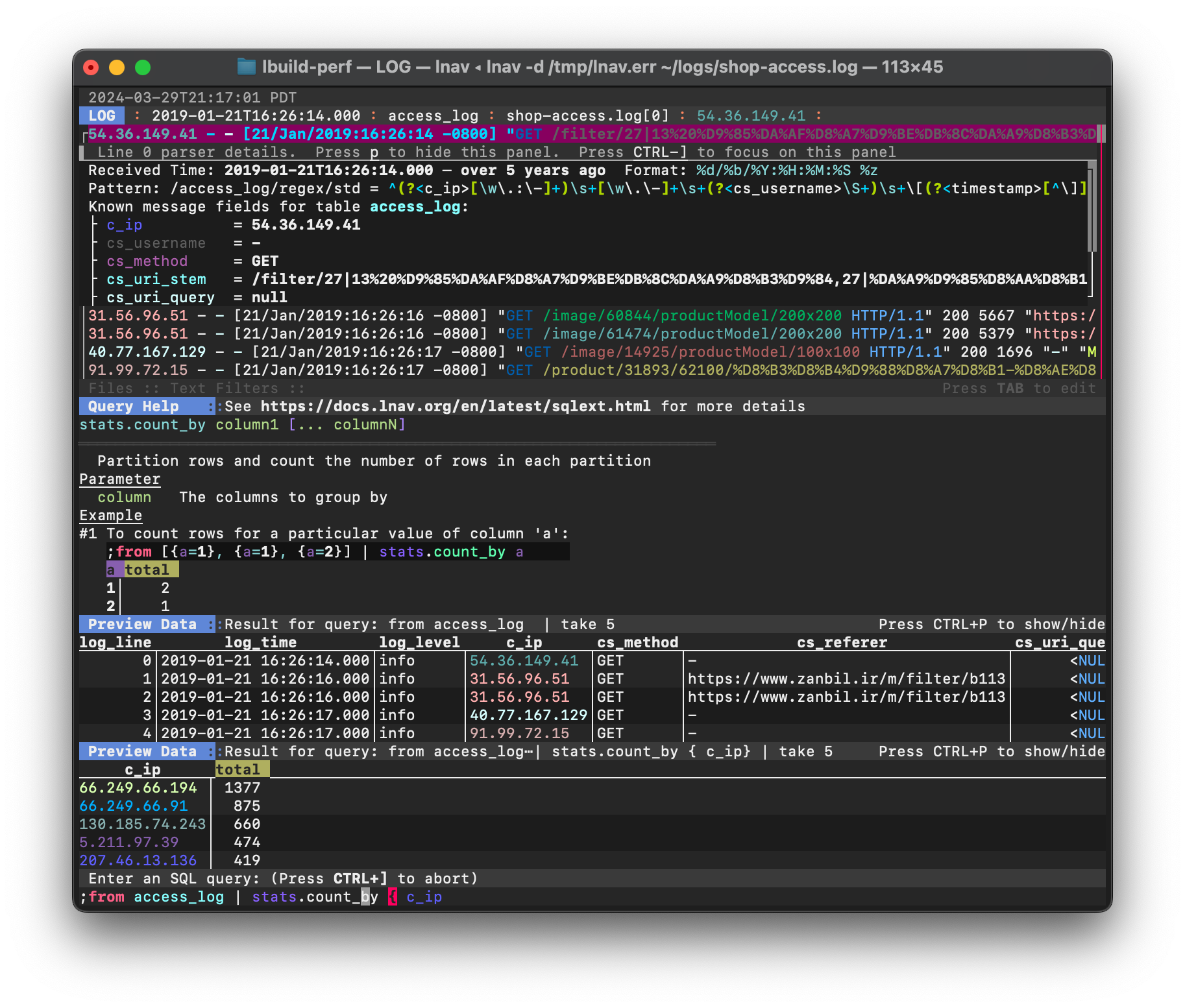
<p>As you enter a query, lnav will update various panels on the display
to show help, preview data, and errors.  The following is a
screenshot of lnav viewing a web access log with a query in progress:</p>

<p><img src="/assets/images/lnav-prql-preview.png" alt="Screenshot of PRQL in action" /></p>

<p>The top half is the usual log message view.  Below that is the online
help panel showing the documentation for the <code class="language-plaintext highlighter-rouge">stats.count_by</code> PRQL
function.  lnav will show the help for what is currently under the
cursor.  The next panel shows the preview data for the pipeline stage
that precedes the stage where the cursor is.  In this case, the
results of <code class="language-plaintext highlighter-rouge">from access_log</code>, which is the contents of the access
log table.  The second preview window shows the result of the
pipeline stage where the cursor is located.</p>

<p>There is still a lot of work to be done on the integration and PRQL
itself, but I’m very hopeful this will work out well in the long
term.  Many thanks to the PRQL team for starting the project and
keeping it going, it’s not easy competing with SQL.</p>]]></content><author><name></name></author><summary type="html"><![CDATA[PRQL is a database query language that is pipeline-oriented and easier to use interactively]]></summary></entry><entry><title type="html">Using lnav to solve the CyberDefenders Hammered Challenge</title><link href="https://lnav.org/2024/01/09/hammered.html" rel="alternate" type="text/html" title="Using lnav to solve the CyberDefenders Hammered Challenge" /><published>2024-01-09T00:00:00+00:00</published><updated>2024-01-09T00:00:00+00:00</updated><id>https://lnav.org/2024/01/09/hammered</id><content type="html" xml:base="https://lnav.org/2024/01/09/hammered.html"><![CDATA[<p>I recently stumbled on this nice <a href="https://lopes.id/2023-lnav-test/">review of lnav</a>
by José Lopes.  They use this <a href="https://cyberdefenders.org/blueteam-ctf-challenges/42">Hammered</a>
challenge by <a href="https://cyberdefenders.org">cyberdefenders.org</a> as a way to get to
know how to use lnav.  I thought I would do the same and document the commands
I would use to give folks some practical examples of using lnav.</p>

<p>(Since I’m not well-versed in forensic work, I followed this great
<a href="https://forensicskween.com/ctf/cyberdefenders/hammered/">walkthrough</a>.)</p>

<h4 id="q1-which-service-did-the-attackers-use-to-gain-access-to-the-system">Q1: Which service did the attackers use to gain access to the system?</h4>

<p>We can probably figure this out by looking for common failure messages
in the logs.  But, first, we need to load the logs into lnav.  You
can load all of the logs by passing the path to the <code class="language-plaintext highlighter-rouge">Hammered</code> directory
along with the <code class="language-plaintext highlighter-rouge">-r</code> option to recurse through any subdirectories:</p>

<div class="language-console highlighter-rouge"><div class="highlight"><pre class="highlight"><code><span class="go">lnav -r Hammered
</span></code></pre></div></div>

<p>Now that the logs are loaded, you can use the <code class="language-plaintext highlighter-rouge">.msgformats</code> SQL command
to execute a canned query that finds log messages with a common text
format.  (Unfortunately, this command has suffered from bitrot and is
broken in the current release.  It will be fixed in the next release.
In the meantime, you can copy the <a href="#msgformatlnav">snippet</a> below
to a file and execute it using the <code class="language-plaintext highlighter-rouge">|</code> prompt.)  You can enter the
SQL prompt by pressing <code class="language-plaintext highlighter-rouge">;</code> and then entering the command or statement:</p>

<div class="language-plaintext highlighter-rouge"><div class="highlight"><pre class="highlight"><code>;.msgformats
</code></pre></div></div>

<p>The top results I get for this batch of logs look like the following.</p>

<div class="language-plaintext highlighter-rouge"><div class="highlight"><pre class="highlight"><code>┏━━━━━┳━━━━━━━━┳━━━━━━━━━━━━━━━━━━━━━━━┳━━━━━━━━━━━━┳━━━━━━━━━━━━━━━━━━━┳━━━━━━━━━━━━━━━━━━━━━━━━━━━━━━━━━━━━━━━━━━━━━━━━━━━━━━━━━━━━━━━━━━━━━━━━━━━━━━━━━━━━━━━━━━━━━━━━━━━━━━━━━━━━━━━━━━━━┓
┃total┃log_line┃       log_time        ┃  duration  ┃    log_formats    ┃                                                   log_msg_format                                                   ┃
┡━━━━━╇━━━━━━━━╇━━━━━━━━━━━━━━━━━━━━━━━╇━━━━━━━━━━━━╇━━━━━━━━━━━━━━━━━━━╇━━━━━━━━━━━━━━━━━━━━━━━━━━━━━━━━━━━━━━━━━━━━━━━━━━━━━━━━━━━━━━━━━━━━━━━━━━━━━━━━━━━━━━━━━━━━━━━━━━━━━━━━━━━━━━━━━━━━┩
│15179│     798│2010-03-16 08:12:09.000│47d14h59m04s│syslog_log         │#): session closed for user root                                                                                    │
│14500│     817│2010-03-16 08:17:01.000│47d14h54m00s│syslog_log         │#): session opened for user root by (#)                                                                             │
│14480│   29380│2010-04-19 04:36:49.000│7d04h03m45s │syslog_log         │pam_unix(sshd:auth): #; #                                                                                           │
│14478│   29381│2010-04-19 04:36:49.000│7d04h03m45s │syslog_log         │#): #; logname= #                                                                                                   │
│ 6300│   74477│2010-04-20 06:57:11.000│6d03h00m42s │syslog_log         │: [#]: IN=# OUT=# MAC=# SRC=# DST=# LEN=# TOS=# PREC=# TTL=# ID=# PROTO=# SPT=# DPT=# LEN=#                         │
│ 5848│    4695│2010-03-18 11:38:04.000│38d21h13m39s│syslog_log         │#): #; logname= #                                                                                                   │
│ 5479│   16164│2010-03-29 13:23:46.000│27d19h27m58s│syslog_log         │Failed password for root from # port # #                                                                            │
...
</code></pre></div></div>

<p>The <code class="language-plaintext highlighter-rouge">#</code> in the <code class="language-plaintext highlighter-rouge">log_msg_format</code> column are the parts of the text
that vary between log messages.  For example, the most interesting
message is “Failed password for root from # port # #”.  In that case,
the first <code class="language-plaintext highlighter-rouge">#</code> would be the IP address and then the port number.  The
first column indicates how many times a message like this was found,
so 5,479 failed password attempts is probably a good sign of a breakin
attempt.</p>

<p>To find out the service that logged this message, you can scroll down
to focus on the message and then press <code class="language-plaintext highlighter-rouge">Shift</code> + <code class="language-plaintext highlighter-rouge">Q</code> to return to the
LOG view at the line mentioned in the <code class="language-plaintext highlighter-rouge">log_line</code> column.  In this case,
line 16,164, which contains:</p>

<div class="language-plaintext highlighter-rouge"><div class="highlight"><pre class="highlight"><code>Mar 29 13:23:46 app-1 sshd[21492]: Failed password for root from 10.0.1.2 port 51771 ssh2
</code></pre></div></div>

<p>So, the attack vector is <code class="language-plaintext highlighter-rouge">sshd</code>.</p>

<h5 id="msgformatlnav">msgformat.lnav</h5>

<p>The <code class="language-plaintext highlighter-rouge">;.msgformats</code> command has been broken for a few releases, but
its functionality can be replicated using the script below.
Copy the following to a file named <code class="language-plaintext highlighter-rouge">msgformat.lnav</code> and place it in the
<code class="language-plaintext highlighter-rouge">formats/installed</code> lnav configuration directory.</p>

<div class="language-plaintext highlighter-rouge"><div class="highlight"><pre class="highlight"><code>;SELECT count(*) AS total,
       min(log_line) AS log_line,
       min(log_time) AS log_time,
       humanize_duration(timediff(max(log_time), min(log_time))) AS duration,
       group_concat(DISTINCT log_format) AS log_formats,
       log_msg_format
    FROM all_logs
    GROUP BY log_msg_format
    HAVING total &gt; 1
    ORDER BY total DESC
:switch-to-view db
</code></pre></div></div>

<h4 id="q2-what-is-the-operating-system-version-of-the-targeted-system-one-word">Q2: What is the operating system version of the targeted system? (one word)</h4>

<p>The answer to this question has the form <code class="language-plaintext highlighter-rouge">4.*.*.u3</code> as given in the
challenge.  You can do a search in lnav by pressing <code class="language-plaintext highlighter-rouge">/</code> and then
entering a PCRE-compatible regular expression.  In this case,
entering <code class="language-plaintext highlighter-rouge">4\.[^ ]+u3</code> will locate lines with the desired version
number of <code class="language-plaintext highlighter-rouge">4.2.4-1ubuntu3</code>.</p>

<h4 id="q3-what-is-the-name-of-the-compromised-account">Q3: What is the name of the compromised account?</h4>

<p>Using the findings of our initial analysis, the compromised account
is <code class="language-plaintext highlighter-rouge">root</code>.</p>

<h4 id="q4-consider-that-each-unique-ip-represents-a-different-attacker-how-many-attackers-were-able-to-get-access-to-the-system">Q4: Consider that each unique IP represents a different attacker. How many attackers were able to get access to the system?</h4>

<p>Answering this question will require analyzing messages in the <code class="language-plaintext highlighter-rouge">auth.log</code>
file.  Specifically, we will need to find failed password attempts, like
the following one and extract the user ID and IP address:</p>

<div class="language-plaintext highlighter-rouge"><div class="highlight"><pre class="highlight"><code>Apr 18 18:22:07 app-1 sshd[5266]: pam_unix(sshd:auth): authentication failure; logname= uid=0 euid=0 tty=ssh ruser= rhost=61.151.246.140  user=root
</code></pre></div></div>

<p>The failed attempts will give us the attacker IP addresses.  However, we
don’t want to confuse attacker IPs with legitimate logins.  So, we’ll
need to look for successful login messages like this one:</p>

<div class="language-plaintext highlighter-rouge"><div class="highlight"><pre class="highlight"><code>Mar 16 08:26:06 app-1 sshd[4894]: Accepted password for user3 from 192.168.126.1 port 61474 ssh2
</code></pre></div></div>

<p>Analyzing log data in lnav is done through the SQL interface.  The
log messages can be accessed through SQL tables that are automatically
defined for each log format.  However, that is pretty cumbersome
since there would be a lot of regex SQL function calls cluttering up
the queries.  Instead, we can use the <a href="https://docs.lnav.org/en/v0.11.2/usage.html#search-tables"><code class="language-plaintext highlighter-rouge">:create-search-table</code></a>
command to create a SQL table that matches a regular expression
against the log messages and extracts data into column(s).  We can
then write much simpler SQL queries to get the data we’re interested
in.</p>

<p>First, lets create an <code class="language-plaintext highlighter-rouge">auth_failures</code> table for the authentication
failure log messages:</p>

<div class="language-plaintext highlighter-rouge"><div class="highlight"><pre class="highlight"><code>:create-search-table auth_failures authentication failure; .* rhost=(?&lt;ip&gt;\d+\.\d+\.\d+\.\d+)\s+user=(?&lt;user&gt;[^ ]+)
</code></pre></div></div>

<p>Now, let’s try it out by finding the IPs of failed auth attempts:</p>

<div class="language-sql highlighter-rouge"><div class="highlight"><pre class="highlight"><code><span class="p">;</span><span class="k">SELECT</span> <span class="k">DISTINCT</span> <span class="n">ip</span> <span class="k">FROM</span> <span class="n">auth_failures</span>
</code></pre></div></div>

<p>Next, lets create an <code class="language-plaintext highlighter-rouge">auth_accepted</code> table for the successful
authentications:</p>

<div class="language-plaintext highlighter-rouge"><div class="highlight"><pre class="highlight"><code>:create-search-table auth_accepted Accepted password for (?&lt;user&gt;[^ ]+) from (?&lt;ip&gt;\d+\.\d+\.\d+\.\d+)
</code></pre></div></div>

<p>Now that we have these two tables, we can write a query that
gets the IPs of failed auth attempts that eventually
succeeded.  We further filter out low failure counts to
eliminate human error.  The full query is as follows:</p>

<div class="language-sql highlighter-rouge"><div class="highlight"><pre class="highlight"><code><span class="p">;</span><span class="k">SELECT</span> <span class="n">ip</span><span class="p">,</span> <span class="k">count</span><span class="p">(</span><span class="o">*</span><span class="p">)</span> <span class="k">AS</span> <span class="n">co</span> <span class="k">FROM</span> <span class="n">auth_failures</span> <span class="k">WHERE</span> <span class="k">user</span> <span class="o">=</span> <span class="s1">'root'</span> <span class="k">AND</span> <span class="n">ip</span> <span class="k">IN</span> <span class="p">(</span><span class="k">SELECT</span> <span class="k">DISTINCT</span> <span class="n">ip</span> <span class="k">FROM</span> <span class="n">auth_accepted</span><span class="p">)</span> <span class="k">GROUP</span> <span class="k">BY</span> <span class="n">ip</span> <span class="k">HAVING</span> <span class="n">co</span> <span class="o">&gt;</span> <span class="mi">10</span>
</code></pre></div></div>

<p>The results are the following six IPs:</p>

<div class="language-plaintext highlighter-rouge"><div class="highlight"><pre class="highlight"><code>┏━━━━━━━━━━━━━━━┳━━━━┓
┃      ip       ┃ co ┃
┡━━━━━━━━━━━━━━━╇━━━━┩
│61.168.227.12  │ 386│
│121.11.66.70   │2858│
│122.226.202.12 │ 626│
│219.150.161.20 │3120│
│222.66.204.246 │1016│
│222.169.224.197│ 358│
└━━━━━━━━━━━━━━━┴━━━━┘
</code></pre></div></div>

<h4 id="q5-which-attackers-ip-address-successfully-logged-into-the-system-the-most-number-of-times">Q5: Which attacker’s IP address successfully logged into the system the most number of times?</h4>

<p>The attacker IPs were found using the query in the previous
question, but the counts are for the number of failed auth
attempts.  Probably the easiest thing to do is create a SQL
view with the previous query.  That can be done quickly by
pressing <code class="language-plaintext highlighter-rouge">;</code> and then pressing the up arrow to go back in
the command history.  Then, go to the start of the line and
prepend <code class="language-plaintext highlighter-rouge">CREATE VIEW attackers AS </code> before the <code class="language-plaintext highlighter-rouge">SELECT</code>.
That will create an <code class="language-plaintext highlighter-rouge">attackers</code> SQL view that we can use
to answer this question.</p>

<p>Now that we can easily get the list of attacker IPs, we
can write a query for the <code class="language-plaintext highlighter-rouge">auth_accepted</code> table that
finds all the successful auth messages.  We then group
by IP and count to get the data we want:</p>

<div class="language-sql highlighter-rouge"><div class="highlight"><pre class="highlight"><code><span class="p">;</span><span class="k">SELECT</span> <span class="n">ip</span><span class="p">,</span> <span class="k">count</span><span class="p">(</span><span class="o">*</span><span class="p">)</span> <span class="k">AS</span> <span class="n">co</span> <span class="k">FROM</span> <span class="n">auth_accepted</span> <span class="k">WHERE</span> <span class="n">ip</span> <span class="k">IN</span> <span class="p">(</span><span class="k">SELECT</span> <span class="n">ip</span> <span class="k">FROM</span> <span class="n">attackers</span><span class="p">)</span> <span class="k">GROUP</span> <span class="k">BY</span> <span class="n">ip</span> <span class="k">ORDER</span> <span class="n">co</span> <span class="k">DESC</span>
</code></pre></div></div>

<p>The results are:</p>

<div class="language-plaintext highlighter-rouge"><div class="highlight"><pre class="highlight"><code>┏━━━━━━━━━━━━━━━┳━━┓
┃      ip       ┃co┃
┡━━━━━━━━━━━━━━━╇━━┩
│219.150.161.20 │ 4│
│122.226.202.12 │ 2│
│121.11.66.70   │ 2│
│222.169.224.197│ 1│
│222.66.204.246 │ 1│
│61.168.227.12  │ 1│
└━━━━━━━━━━━━━━━┴━━┘
</code></pre></div></div>

<p>The top IP there is <code class="language-plaintext highlighter-rouge">219.150.161.20</code>.</p>

<h4 id="q6-how-many-requests-were-sent-to-the-apache-server">Q6: How many requests were sent to the Apache Server?</h4>

<p>Logs that follow the Apache log format can be accessed by the
<code class="language-plaintext highlighter-rouge">access_log</code> SQL table.  The following query will count the
log messages in each access log file:</p>

<div class="language-sql highlighter-rouge"><div class="highlight"><pre class="highlight"><code><span class="p">;</span><span class="k">SELECT</span> <span class="n">log_path</span><span class="p">,</span> <span class="k">count</span><span class="p">(</span><span class="o">*</span><span class="p">)</span> <span class="k">FROM</span> <span class="n">access_log</span> <span class="k">GROUP</span> <span class="k">BY</span> <span class="n">log_path</span>
</code></pre></div></div>

<p>The results I get are:</p>

<div class="language-plaintext highlighter-rouge"><div class="highlight"><pre class="highlight"><code>┏━━━━━━━━━━━━━━━━━━━━━━━━━━━━━━━━━━━━━━━━━━━━━━━━━━━━━━━┳━━━━━━━━┓
┃                       log_path                        ┃count(*)┃
┡━━━━━━━━━━━━━━━━━━━━━━━━━━━━━━━━━━━━━━━━━━━━━━━━━━━━━━━╇━━━━━━━━┩
│/Users/tstack/Downloads/Hammered/apache2/www-access.log│     365│
│/Users/tstack/Downloads/Hammered/apache2/www-media.log │     229│
└━━━━━━━━━━━━━━━━━━━━━━━━━━━━━━━━━━━━━━━━━━━━━━━━━━━━━━━┴━━━━━━━━┘
</code></pre></div></div>

<p>It seems like they want just what is in the <code class="language-plaintext highlighter-rouge">www-access.log</code>
file, so the answer is 365.</p>

<h4 id="q7-how-many-rules-have-been-added-to-the-firewall">Q7: How many rules have been added to the firewall?</h4>

<p>Rules are added by the <code class="language-plaintext highlighter-rouge">iptables -A</code> command, so we can do a
search for that command and the status bar will show
“6 hits for “iptables -A””.</p>

<h4 id="q9-when-was-the-last-login-from-the-attacker-with-ip-21915016120-format-mmddyyyy-hhmmss-am">Q9: When was the last login from the attacker with IP 219.150.161.20? Format: MM/DD/YYYY HH:MM:SS AM</h4>

<p>Using the <code class="language-plaintext highlighter-rouge">auth_accepted</code> table we created previously, this is
a pretty simple query for <code class="language-plaintext highlighter-rouge">max(log_time)</code>:</p>

<div class="language-sql highlighter-rouge"><div class="highlight"><pre class="highlight"><code><span class="p">;</span><span class="k">SELECT</span> <span class="k">max</span><span class="p">(</span><span class="n">log_time</span><span class="p">)</span> <span class="k">FROM</span> <span class="n">auth_accepted</span> <span class="k">WHERE</span> <span class="n">ip</span> <span class="o">=</span> <span class="s1">'219.150.161.20'</span>
</code></pre></div></div>

<p>The result I get is:</p>

<div class="language-plaintext highlighter-rouge"><div class="highlight"><pre class="highlight"><code>✔ SQL Result: 2010-04-19 05:56:05.000
</code></pre></div></div>

<h4 id="q10-the-database-displayed-two-warning-messages-provide-the-most-important-and-dangerous-one">Q10: The database displayed two warning messages, provide the most important and dangerous one.</h4>

<p>The database log messages come out in the syslog with a procname
of <code class="language-plaintext highlighter-rouge">/etc/mysql/debian-start</code> and are recognized as warnings.
Using this, we can write a <a href="https://docs.lnav.org/en/v0.11.2/commands.html#filter-expr-expr">filter expression</a>
that filters the log based on SQL expression.  For the syslog
file format, the procname is accessible via the <code class="language-plaintext highlighter-rouge">:log_procname</code>
variable and the log level is in the <code class="language-plaintext highlighter-rouge">:log_level</code> variable.
The following command puts this together:</p>

<div class="language-plaintext highlighter-rouge"><div class="highlight"><pre class="highlight"><code>:filter-expr :log_procname = '/etc/mysql/debian-start' AND :log_level = 'warning'
</code></pre></div></div>

<p>After running this command, you should only see about 15 lines
of the 100+k that was originally shown.  Taking a look at these
lines, the following line seems pretty bad:</p>

<div class="language-plaintext highlighter-rouge"><div class="highlight"><pre class="highlight"><code>Mar 18 10:18:42 app-1 /etc/mysql/debian-start[7566]: WARNING: mysql.user contains 2 root accounts without password!
</code></pre></div></div>

<p>To clear the filter, you can press <code class="language-plaintext highlighter-rouge">CTRL</code> + <code class="language-plaintext highlighter-rouge">R</code> to reset the
state of the session.</p>

<h4 id="q12-few-attackers-were-using-a-proxy-to-run-their-scans-what-is-the-corresponding-user-agent-used-by-this-proxy">Q12: Few attackers were using a proxy to run their scans. What is the corresponding user-agent used by this proxy?</h4>

<p>The user-agent can be retrieved from the <code class="language-plaintext highlighter-rouge">cs_user_agent</code>
column in the <code class="language-plaintext highlighter-rouge">access_log</code> table.  The following query
will get the unique user-agent names:</p>

<div class="language-sql highlighter-rouge"><div class="highlight"><pre class="highlight"><code><span class="p">;</span><span class="k">SELECT</span> <span class="k">DISTINCT</span> <span class="n">cs_user_agent</span> <span class="k">FROM</span> <span class="n">access_log</span>
</code></pre></div></div>

<p>The results I get are:</p>

<div class="language-plaintext highlighter-rouge"><div class="highlight"><pre class="highlight"><code>┏━━━━━━━━━━━━━━━━━━━━━━━━━━━━━━━━━━━━━━━━━━━━━━━━━━━━━━━━━━━━━━━━━━━━━━━━━━━━━━━━━━━━━━━━━━━━━━━━━━━━━━━━━━━━━━━━━━━━━━━━━━━━━━━━┓
┃                                                         cs_user_agent                                                          ┃
┡━━━━━━━━━━━━━━━━━━━━━━━━━━━━━━━━━━━━━━━━━━━━━━━━━━━━━━━━━━━━━━━━━━━━━━━━━━━━━━━━━━━━━━━━━━━━━━━━━━━━━━━━━━━━━━━━━━━━━━━━━━━━━━━━┩
│Apple-PubSub/65.12.1                                                                                                            │
│Mozilla/4.0 (compatible; MSIE 6.0; Windows NT 5.1)                                                                              │
│Mozilla/4.0 (compatible; MSIE 6.0; Windows NT 5.0)                                                                              │
│iearthworm/1.0, iearthworm@yahoo.com.cn                                                                                         │
│Mozilla/5.0 (Windows; U; Windows NT 5.1; en-US) AppleWebKit/532.5 (KHTML, like Gecko) Chrome/4.1.249.1045 Safari/532.5          │
│WordPress/2.9.2; http://www.domain.org                                                                                          │
│Mozilla/5.0 (Windows; U; Windows NT 5.1; es-ES; rv:1.9.0.19) Gecko/2010031422 Firefox/3.0.19                                    │
│Mozilla/5.0 (Macintosh; U; Intel Mac OS X 10_6_2; en-us) AppleWebKit/531.21.8 (KHTML, like Gecko) Version/4.0.4 Safari/531.21.10│
│Mozilla/5.0 (Macintosh; U; Intel Mac OS X 10.6; en-US; rv:1.9.2.3) Gecko/20100401 Firefox/3.6.3                                 │
│pxyscand/2.1                                                                                                                    │
│-                                                                                                                               │
│Mozilla/4.0 (compatible; NaverBot/1.0; http://help.naver.com/customer_webtxt_02.jsp)                                            │
│Mozilla/5.0 (Macintosh; U; Intel Mac OS X 10_6_2; en-us) AppleWebKit/531.22.7 (KHTML, like Gecko) Version/4.0.5 Safari/531.22.7 │
│Mozilla/5.0 (Windows; U; Windows NT 5.1; en-US) AppleWebKit/532.5 (KHTML, like Gecko) Chrome/4.1.249.1059 Safari/532.5          │
└━━━━━━━━━━━━━━━━━━━━━━━━━━━━━━━━━━━━━━━━━━━━━━━━━━━━━━━━━━━━━━━━━━━━━━━━━━━━━━━━━━━━━━━━━━━━━━━━━━━━━━━━━━━━━━━━━━━━━━━━━━━━━━━━┘
</code></pre></div></div>

<p>The <code class="language-plaintext highlighter-rouge">pxyscand/2.1</code> name seems to be the one they want.</p>]]></content><author><name></name></author><summary type="html"><![CDATA[A walkthrough that uses lnav's analysis functionality to answer questions about a collection of logs]]></summary></entry><entry><title type="html">Tooling for troubleshooting configuration</title><link href="https://lnav.org/2023/08/04/config-dump.html" rel="alternate" type="text/html" title="Tooling for troubleshooting configuration" /><published>2023-08-04T00:00:00+00:00</published><updated>2023-08-04T00:00:00+00:00</updated><id>https://lnav.org/2023/08/04/config-dump</id><content type="html" xml:base="https://lnav.org/2023/08/04/config-dump.html"><![CDATA[<p><em>(This change is in <strong>v0.12.0+</strong>)</em></p>

<p>Inspired by <a href="https://utcc.utoronto.ca/~cks/space/blog/sysadmin/ReportConfigFileLocations">this blog post about reporting configuration file locations</a>
and the <a href="https://news.ycombinator.com/item?id=36465886">ensuing HackerNews commentary</a>.
I’ve added the <code class="language-plaintext highlighter-rouge">config get</code> and <code class="language-plaintext highlighter-rouge">config blame</code> management commands for getting the
final configuration and the source of each property in the configuration, respectively.
I had previously added the file locations used by <strong>lnav</strong> in the <code class="language-plaintext highlighter-rouge">lnav -h</code> output as
recommended by the blog post.  But, the HN comments made a good case for adding the
the other troubleshooting tooling as well.</p>

<p>If you would like to try out these new commands, you need to run lnav with the <code class="language-plaintext highlighter-rouge">-m</code>
option to switch to the “management” mode.  For example, just running lnav with this
flag will print out the available operations:</p>

<div class="language-console highlighter-rouge"><div class="highlight"><pre class="highlight"><code><span class="gp">$</span><span class="w"> </span>lnav <span class="nt">-m</span>
<span class="go">✘ error: expecting an operation to perform
 = help: the available operations are:
          • config: perform operations on the lnav configuration
          • format: perform operations on log file formats
          • piper: perform operations on piper storage
          • regex101: create and edit log message regular expressions using regex101.com
</span></code></pre></div></div>

<p>Executing <code class="language-plaintext highlighter-rouge">config get</code> will print out the final configuration that lnav is operating
with as JSON:</p>

<div class="language-console highlighter-rouge"><div class="highlight"><pre class="highlight"><code><span class="gp">$</span><span class="w"> </span>lnav <span class="nt">-m</span> config get
</code></pre></div></div>

<p>If you would like to know the source of the value for each property, you can use
the <code class="language-plaintext highlighter-rouge">config blame</code> command, like so:</p>

<div class="language-console highlighter-rouge"><div class="highlight"><pre class="highlight"><code><span class="gp">$</span><span class="w"> </span>lnav <span class="nt">-m</span> config blame | <span class="nb">tail</span>
<span class="gp">/ui/theme-defs/solarized-light/vars/black -&gt;</span><span class="w"> </span>solarized-light.json:15
<span class="gp">/ui/theme-defs/solarized-light/vars/blue -&gt;</span><span class="w"> </span>solarized-light.json:21
<span class="gp">/ui/theme-defs/solarized-light/vars/cyan -&gt;</span><span class="w"> </span>solarized-light.json:22
<span class="gp">/ui/theme-defs/solarized-light/vars/green -&gt;</span><span class="w"> </span>solarized-light.json:23
<span class="gp">/ui/theme-defs/solarized-light/vars/magenta -&gt;</span><span class="w"> </span>solarized-light.json:19
<span class="gp">/ui/theme-defs/solarized-light/vars/orange -&gt;</span><span class="w"> </span>solarized-light.json:17
<span class="gp">/ui/theme-defs/solarized-light/vars/red -&gt;</span><span class="w"> </span>solarized-light.json:18
<span class="gp">/ui/theme-defs/solarized-light/vars/semantic_highlight_color -&gt;</span><span class="w"> </span>solarized-light.json:24
<span class="gp">/ui/theme-defs/solarized-light/vars/violet -&gt;</span><span class="w"> </span>solarized-light.json:20
<span class="gp">/ui/theme-defs/solarized-light/vars/yellow -&gt;</span><span class="w"> </span>solarized-light.json:16
</code></pre></div></div>

<p>In the above output, “solarized-light.json” file is built into the lnav
executable and is not from the file system.</p>]]></content><author><name></name></author><summary type="html"><![CDATA[Getting the final configuration and the sources of values]]></summary></entry><entry><title type="html">Cursor Mode</title><link href="https://lnav.org/2023/06/23/cursor-mode.html" rel="alternate" type="text/html" title="Cursor Mode" /><published>2023-06-23T00:00:00+00:00</published><updated>2023-06-23T00:00:00+00:00</updated><id>https://lnav.org/2023/06/23/cursor-mode</id><content type="html" xml:base="https://lnav.org/2023/06/23/cursor-mode.html"><![CDATA[<p><em>(This change is in <a href="https://github.com/tstack/lnav/releases/tag/v0.11.2-rc3"><strong>v0.11.2+</strong></a>)</em></p>

<p>The major change in the v0.11.2 release is the addition of a “cursor mode”
for the main view.  Instead of focusing on the top line for interacting
with <strong>lnav</strong>, a cursor line is displayed and interactions focus on that.
The arrow keys and the hotkeys that jump between bookmarks, like search
hits and errors, now move the focused line instead of scrolling the view.
To help provide context for what you’re looking at, large jumps will keep
the focused line in the middle of the view.  Smaller movements, like
moving the cursor above the top line, will scroll the view a small amount
so as not to be jarring.</p>

<p>You can enable/disable cursor mode interactively by pressing <code class="language-plaintext highlighter-rouge">CTRL</code> + <code class="language-plaintext highlighter-rouge">x</code>.
Or, you can permanently enable cursor mode by running the following
<code class="language-plaintext highlighter-rouge">:config</code> command:</p>

<div class="language-plaintext highlighter-rouge"><div class="highlight"><pre class="highlight"><code>:config /ui/movement/mode cursor
</code></pre></div></div>

<script async="" id="asciicast-d94CmxlGM01I0L5HNn9qDn917" src="https://asciinema.org/a/d94CmxlGM01I0L5HNn9qDn917.js">
</script>]]></content><author><name></name></author><summary type="html"><![CDATA[Move around the main view using a cursor]]></summary></entry><entry><title type="html">VSCode Extension for lnav</title><link href="https://lnav.org/2022/09/24/vscode-extension.html" rel="alternate" type="text/html" title="VSCode Extension for lnav" /><published>2022-09-24T00:00:00+00:00</published><updated>2022-09-24T00:00:00+00:00</updated><id>https://lnav.org/2022/09/24/vscode-extension</id><content type="html" xml:base="https://lnav.org/2022/09/24/vscode-extension.html"><![CDATA[<p>I’ve published a simple <a href="https://marketplace.visualstudio.com/items?itemName=lnav.lnav">Visual Studio Code extension for lnav</a>
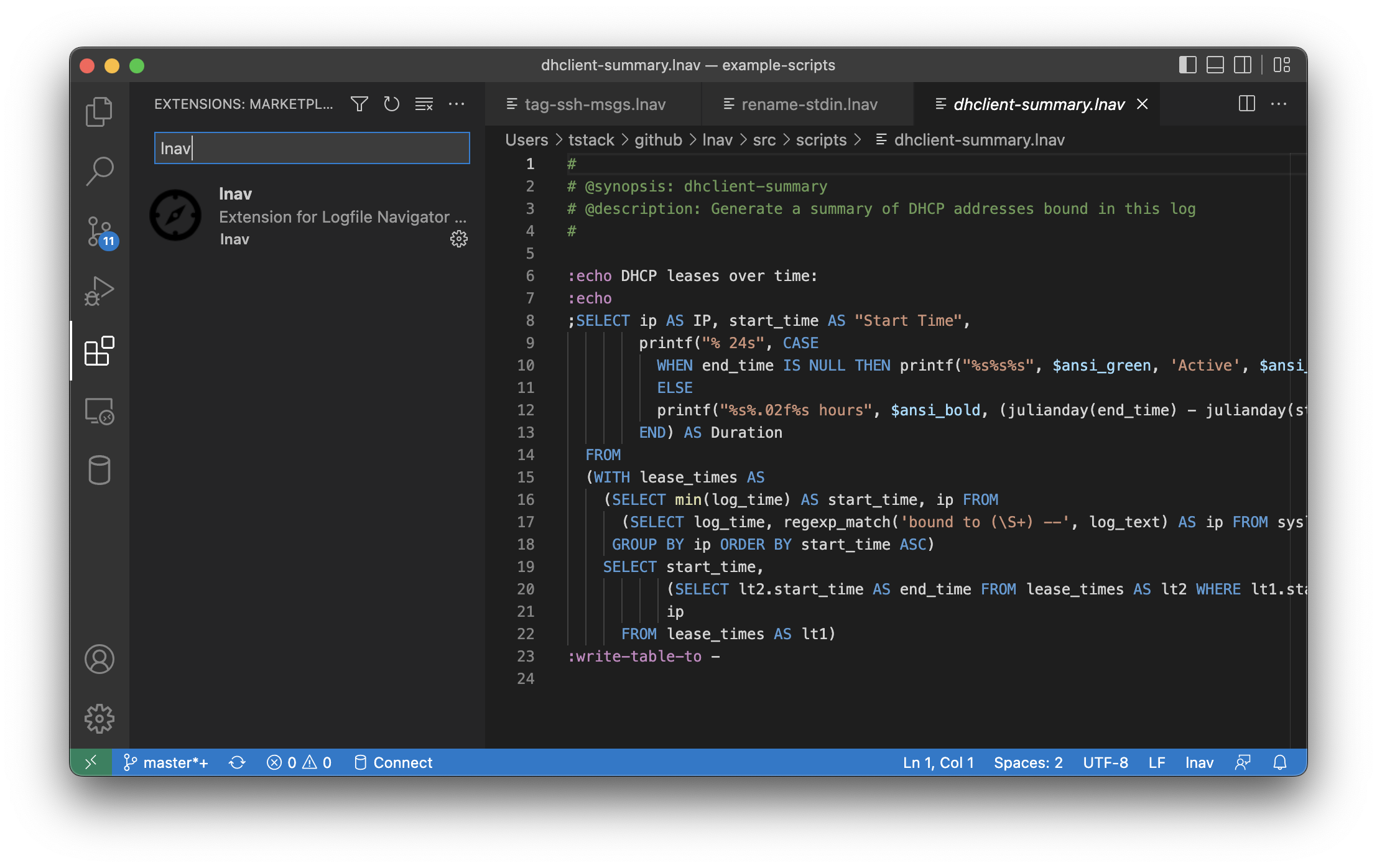
that adds syntax highlighting for scripts.  The following is a
screenshot showing the <code class="language-plaintext highlighter-rouge">dhclient-summary.lnav</code> script that is
builtin:</p>

<p><img src="/assets/images/lnav-vscode-extension.png" alt="Screenshot of an lnav script" /></p>

<p>The lnav commands, those prefixed with colons, are marked as
keywords and the SQL blocks are treated as an embedded language
and highlighted accordingly.</p>

<p>If people find this useful, we can take it further and add
support for running the current script/snippet in a new lnav
process or even talking to an existing one.</p>]]></content><author><name></name></author><summary type="html"><![CDATA[Syntax highlighting for lnav scripts]]></summary></entry><entry><title type="html">Playground and Tutorial</title><link href="https://lnav.org/2022/09/01/playground.html" rel="alternate" type="text/html" title="Playground and Tutorial" /><published>2022-09-01T00:00:00+00:00</published><updated>2022-09-01T00:00:00+00:00</updated><id>https://lnav.org/2022/09/01/playground</id><content type="html" xml:base="https://lnav.org/2022/09/01/playground.html"><![CDATA[<p>To make it easier to try out <strong>lnav</strong>, I’ve deployed an ssh-based playground
and tutorial.  You can SSH as follows to try them out:</p>

<div class="language-console highlighter-rouge"><div class="highlight"><pre class="highlight"><code><span class="gp">$</span><span class="w"> </span>ssh playground@demo.lnav.org
<span class="gp">$</span><span class="w"> </span>ssh tutorial1@demo.lnav.org
</code></pre></div></div>

<script id="asciicast-HiiUMMmRKZh0uCVKm1Uw8WLlw" src="https://asciinema.org/a/HiiUMMmRKZh0uCVKm1Uw8WLlw.js" async="">
</script>

<p>The playground has a couple of example logs to play with.  The tutorial
tries to guide you through the basics of navigating log files with lnav.
The server is running on the free-tier of <a href="https://fly.io">fly.io</a>, so
please be kind.</p>

<p>This effort was inspired by the <code class="language-plaintext highlighter-rouge">git.charm.sh</code> SSH server and by the
<a href="https://fasterthanli.me/articles/remote-development-with-rust-on-fly-io">fasterthanli.me</a>
post on doing remote development on fly.io.</p>]]></content><author><name></name></author><summary type="html"><![CDATA[Try lnav without having to install anything]]></summary></entry><entry><title type="html">Markdown Support</title><link href="https://lnav.org/2022/08/06/markdown-support.html" rel="alternate" type="text/html" title="Markdown Support" /><published>2022-08-06T00:00:00+00:00</published><updated>2022-08-06T00:00:00+00:00</updated><id>https://lnav.org/2022/08/06/markdown-support</id><content type="html" xml:base="https://lnav.org/2022/08/06/markdown-support.html"><![CDATA[<p><em>(This change will be in the upcoming v0.11.0 release)</em></p>

<p>As part of the effort to polish the lnav TUI, I wanted to make the builtin
help text look a bit nicer. The current help text is a plain text file with
some ANSI escape sequences for colors. It’s not easy to write or read. Since
Markdown has become a dominant way to write this type of document, I figured
I could use that and have the side benefit of allowing lnav to read Markdown
docs. Fortunately, the <a href="https://github.com/mity/md4c">MD4C</a> library exists.
This library provides a nice event-driven parser for documents instead of
just converting directly to HTML. In addition, document structure is now
shown/navigable through the new breadcrumb bar at the top. I think the
result is pretty nice:</p>

<script id="asciicast-2hx3UiyzOHQXBQOBf31ztKvHc" src="https://asciinema.org/a/2hx3UiyzOHQXBQOBf31ztKvHc.js" async="">
</script>

<h2 id="viewing-markdown-files">Viewing Markdown Files</h2>

<p>Files with an <code class="language-plaintext highlighter-rouge">.md</code> suffix will be considered as Markdown and will be
parsed as such. As an example, here is lnav displaying its README.md file:</p>

<script id="asciicast-iw4rwddZNGCe3v8DyOfItERG9" src="https://asciinema.org/a/iw4rwddZNGCe3v8DyOfItERG9.js" async="">
</script>]]></content><author><name></name></author><summary type="html"><![CDATA[A side effect of fancier help text]]></summary></entry><entry><title type="html">Pretty error messages</title><link href="https://lnav.org/2022/08/04/pretty-errors.html" rel="alternate" type="text/html" title="Pretty error messages" /><published>2022-08-04T00:00:00+00:00</published><updated>2022-08-04T00:00:00+00:00</updated><id>https://lnav.org/2022/08/04/pretty-errors</id><content type="html" xml:base="https://lnav.org/2022/08/04/pretty-errors.html"><![CDATA[<p><em>(This change will be in the upcoming v0.11.0 release)</em></p>

<p>Taking a page from compilers like rustc, I’ve spent some time
improving error messages to make them look nicer and be more
helpful. Fortunately, SQLite has improved their error reporting
as well by adding
<a href="http://sqlite.com/c3ref/errcode.html">sqlite3_error_offset()</a>.
This function can point to the part of the SQL statement that
was in error. As an example of the improvement, a SQL file
that contained the following content:</p>

<div class="language-sql highlighter-rouge"><div class="highlight"><pre class="highlight"><code>
<span class="c1">-- This is a test</span>
<span class="k">SELECT</span> <span class="n">abc</span><span class="p">),</span>
<span class="n">rtrim</span><span class="p">(</span><span class="n">def</span><span class="p">)</span>
<span class="k">FROM</span> <span class="n">mytable</span><span class="p">;</span>
</code></pre></div></div>

<p>Would report an error like the following on startup in v0.10.1:</p>

<div class="language-text highlighter-rouge"><div class="highlight"><pre class="highlight"><code>error:/Users/tstack/.config/lnav/formats/installed/test.sql:2:near ")": syntax error
</code></pre></div></div>

<p>Now, you will get a clearer error message with a syntax-highlighted
code snippet and a pointer to the part of the code that has the
problem:</p>

<p><img src="/assets/images/lnav-sql-error-msg.png" alt="Screenshot of a SQL error" /></p>

<p>Inside the TUI, a panel has been added at the bottom to display these
long-form error messages. The panel will disappear after a short
time or when input is received. Here is an example showing an error
for an invalid regular expression:</p>

<script id="asciicast-lmYMLZsB02WbSO8VEz4aVLXa1" src="https://asciinema.org/a/lmYMLZsB02WbSO8VEz4aVLXa1.js" async="">
</script>]]></content><author><name></name></author><summary type="html"><![CDATA[Error message improvements]]></summary></entry><entry><title type="html">Integration with regex101.com</title><link href="https://lnav.org/2022/05/01/regex101-integration.html" rel="alternate" type="text/html" title="Integration with regex101.com" /><published>2022-05-01T00:00:00+00:00</published><updated>2022-05-01T00:00:00+00:00</updated><id>https://lnav.org/2022/05/01/regex101-integration</id><content type="html" xml:base="https://lnav.org/2022/05/01/regex101-integration.html"><![CDATA[<p><em>(This change will be in the upcoming v0.11.0 release)</em></p>

<p>Creating and updating format files for <strong>lnav</strong> can be a bit tedious and
error-prone. To help streamline the process, an integration with regex101.com
has been added. Now, you can create regular expressions for plaintext log
files on https://regex101.com and then create a skeleton format file with a
simple command. If you already have a format file that needs to be updated,
you can push the regexes up to regex101, edit them with their interface, and
then pull the changes back down as a format patch file.</p>

<p>To further improve the experience of developing with format files, there is
also work underway to improve error messages. Many messages should be clearer,
more context is provided, and they should look nicer as well. For example, the
following error is displayed when a format regex is not valid:</p>

<p><img src="/assets/images/lnav-invalid-regex-error.png" alt="Screenshot of an error message" /></p>

<h2 id="management-cli">Management CLI</h2>

<p>The regex101 integration can be accessed through the new “management-mode CLI”.
This mode can be accessed by passing <code class="language-plaintext highlighter-rouge">-m</code> as the first option to <strong>lnav</strong>. The
management CLI is organized as a series of nested commands. If you’re not sure
what to do at a given level, run the command as-is and the CLI should print out
help text to guide you through the hierarchy of commands and required
parameters.</p>

<h3 id="create-a-format-from-a-regular-expression">Create a format from a regular expression</h3>

<p>The <code class="language-plaintext highlighter-rouge">regex101 import</code> command can be used to import a regular expression from
regex101.com and create or patch a format file. The command takes the URL of
the regex, the format name, and the name of the regex in the log format (
defaults to “std” if not given). For example, the following command can be used
to import the regex at “https://regex101.com/r/zpEnjV/2” into the format named “
re101_example_log”:</p>

<div class="language-console highlighter-rouge"><div class="highlight"><pre class="highlight"><code><span class="gp">$</span><span class="w"> </span>lnav <span class="nt">-m</span> regex101 import https://regex101.com/r/zpEnjV/2 re101_example_log
</code></pre></div></div>

<p>If the import was successful, the path to the skeleton format file will be
printed. You will most likely need to edit the file to fill in more details
about your log format.</p>

<h3 id="editing-an-existing-regular-expression">Editing an existing regular expression</h3>

<p>If you have a log format with a regex that needs to be updated, you can push
the regex to regex101.com for editing with a command like (replace
“myformat_log”/”std” with the name of your format and regex):</p>

<div class="language-console highlighter-rouge"><div class="highlight"><pre class="highlight"><code><span class="gp">$</span><span class="w"> </span>lnav <span class="nt">-m</span> format myformat_log regex std regex101 push
</code></pre></div></div>

<p>Along with the regex, the format’s samples will be added to the entry to ensure
changes won’t break existing matches. If the push was successful, the URL for
the new regex101.com entry will be printed out. You can use that URL to edit the
regex to your needs. Once you’re done editing the regex, you can pull the
changes down to a “patch” file using the following command:</p>

<div class="language-console highlighter-rouge"><div class="highlight"><pre class="highlight"><code><span class="gp">$</span><span class="w"> </span>lnav <span class="nt">-m</span> format myformat_log regex std regex101 pull
</code></pre></div></div>

<p>The patch file will be evaluated after the original format file and override
the values from the original. Once you are satisfied with the changes, you
can move the contents of the patch file to the original file and delete the
patch.</p>]]></content><author><name></name></author><summary type="html"><![CDATA[Create/edit format files using regex101.com]]></summary></entry></feed>